Canopy

Peer-to-peer messaging, and remote access to your home server for you and your guests.

Canopy connects your devices to your contacts and, optionally, to a server you run. Add friends and family to your server as guests and choose which services each one can use. Connections are encrypted and peer-to-peer. No port forwarding or account is required.

Why it exists

Own your media and your conversations

Most of us pay for several streaming services. The prices go up every year, and after paying all of them we still don't own anything.

Most of our communication also runs through multibillion-dollar, for-profit companies.

Canopy exists so you don't have to rely on them. Your media stays on a server you own, and your messages go directly between the people involved.

It's about data sovereignty: your messages and your media collection belong to you, not to a platform. There's no algorithm deciding what you watch next. You choose it yourself.

The same goes for friends. You listen to a friend's music or look at their holiday photos on their server, in their house, not on a third-party platform that's mining your attention for money.

Overview

What it does

Canopy provides messaging between people and access to services on their home servers. Both run over direct, encrypted connections between devices.

Zero-config, peer-to-peer remote access

Services on your home server, such as Jellyfin, SSH or a file share, are reachable from your phone, and from the phones of any guests you add. Devices connect to the server directly, peer to peer, with nothing to configure: no port forwarding, no VPN and no dynamic DNS. Nothing is exposed to the internet.

Direct messaging

Messages are end-to-end encrypted and sent from device to device. They are not stored by a third party. If the recipient has a home server, it holds their messages while they are offline.

No accounts

Each person is identified by a key stored on their own device. Contacts are added by exchanging codes.

Guest access

Other people can be added to your server as guests. Each guest can use only the services and folders you give them access to.

Works alongside existing services

The server runs as a container next to your existing ones. It lists the containers on the machine, and any of them can be made available without changing its setup.

Server optional

Messaging works with the app alone. Without a home server, messages to an offline contact are held on your device and sent when both devices are online.

Components

Devices, contacts and servers

Devices, contacts and servers are paired once by scanning or pasting a code. After that they connect to each other automatically.

Home server (optional)

A container on a machine you run. It stores messages while your devices are offline and provides access to services for you and your guests.

Not required for messaging. A device can connect to more than one server.

One profile across all your devices

Your phone, laptop and tablet share one profile. Contacts see you as one person, not as a list of devices. A new device receives your contacts and messages from your existing devices.

One device holds the profile key. A recovery key is shown once at setup.

Contacts

People you have exchanged codes with. You can message them and give them access to services and folders. Removing a contact removes you from their list as well.

Features

Services, messages and sharing

Service tunnels

A service on the home server is opened on a local port on your device. Any app that works with that service can connect to the port.

Message a person, not a device

Messages are addressed to a person. You don't choose which of their devices to send to.

Delivery fans out in two steps. First, your outbox delivers the message to whichever of their devices, or their home server, is reachable first. Then their devices sync it between themselves, so it arrives on every device they own. Each message shows its status: waiting or delivered.

Shared folders

A home server can share a folder with a contact. Access is read-only and can be revoked at any time.

Per-person access

Access is granted to a person and applies to all of their devices, including devices added later. Individual devices can be removed separately.

Security

Security model

Design decisions that limit exposure.

No open ports
Devices connect over iroh. A direct connection is used where possible, with a public relay as fallback, for example behind CGNAT. No router configuration is needed.
No login page
The admin console listens on 127.0.0.1 only and is not reachable from the network. Access it through an SSH tunnel.
No service discovery
Services are requested by name. A request for a service that doesn't exist gets the same response as one for a service you can't use, so other services can't be discovered.
Device removal
Only one device holds the profile key. Any other device can be removed and loses access. If the key-holding device is lost, the recovery key replaces it.
Direct-only mode
A per-device setting restricts messages and services to direct connections. The relay can still help devices find each other, but no data passes through it.

Download

Get Canopy

Version 0.3.1. Checksums and every earlier version are on the release page.

Linux computers

Canopy runs in the background and opens in your browser. The script installs it for your account only, checks the download against the release's checksums, and adds Canopy to your applications menu.

$ curl -fsSL https://codeberg.org/BrevDen/Canopy/raw/branch/main/install-desktop.sh | sh

To have it start when you log in, put CANOPY_AUTOSTART=1 before sh.

Command line

Canopy also has a command-line interface, canopy. It covers pairing, messages, service tunnels, shared folders and running a home server, and it's what the server install below uses.

Server

Set up a server

The script installs podman if needed (Docker also works), pulls the image from Codeberg, and sets Canopy up as a service that starts on boot.

Run the install script

$ curl -fsSL https://codeberg.org/BrevDen/Canopy/raw/branch/main/install.sh | sh

Options, set as environment variables:

VariableWhat it changes
CANOPY_NAMEServer name. Used on first run only; rename it later in the console.
CANOPY_HOST_NET=1Use host networking. On Linux, improves the chance of direct connections and allows access to other services on the same machine.
CANOPY_UI_PORTConsole port on localhost. Default: 7970.
CANOPY_DATA_DIRStore data in this folder instead of a podman volume. If it is on a separate disk, mount the disk first.

Open the console

$ ssh -L 7970:127.0.0.1:7970 you@your-server
# then open http://127.0.0.1:7970/

Pages: Dashboard, Services, Connections, Settings. The pairing code is on the Dashboard.

Add a service

In the console

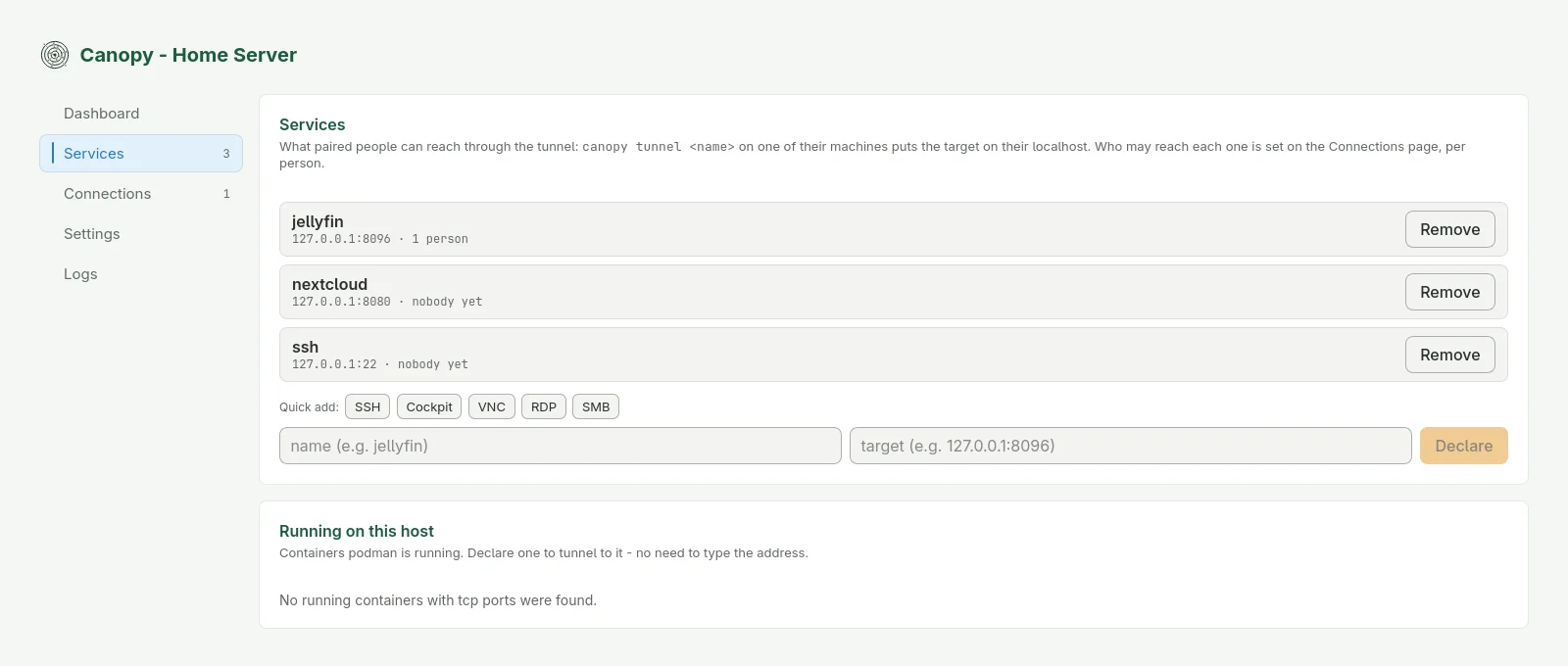
The Services page of the Canopy console, listing jellyfin, nextcloud and ssh with a form to add another
Services page: declared services, quick-add presets, and containers running on the machine.

From the command line

$ podman exec canopy canopy service add jellyfin jellyfin:8096

New services are not available to anyone until access is granted on the Connections page.

Pair a device

Install the Canopy app (see Download) and scan or paste the code from the Dashboard. The first device holds the profile key. Devices added later join the same profile.

In the console

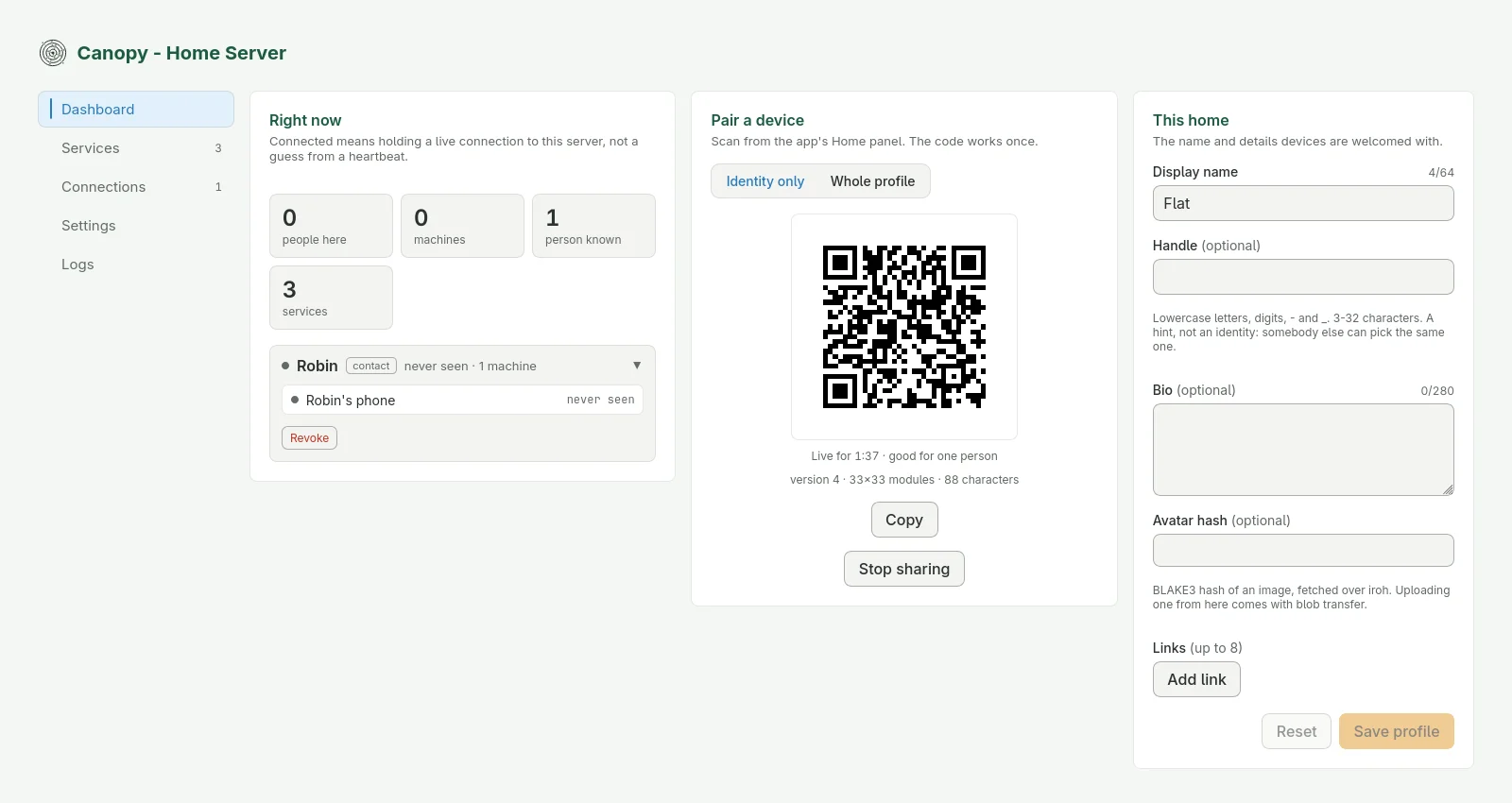
The Canopy console Dashboard showing a pairing QR code between a summary of who is connected and the home's name and details
Dashboard: the pairing code, valid for one device for two minutes.

From the command line

$ canopy join '<code>'

Run this on a desktop or laptop with the code from the Dashboard or the server's log.

Add guests

Show a guest the guest pairing code, then grant access to specific services and folders.

In the console

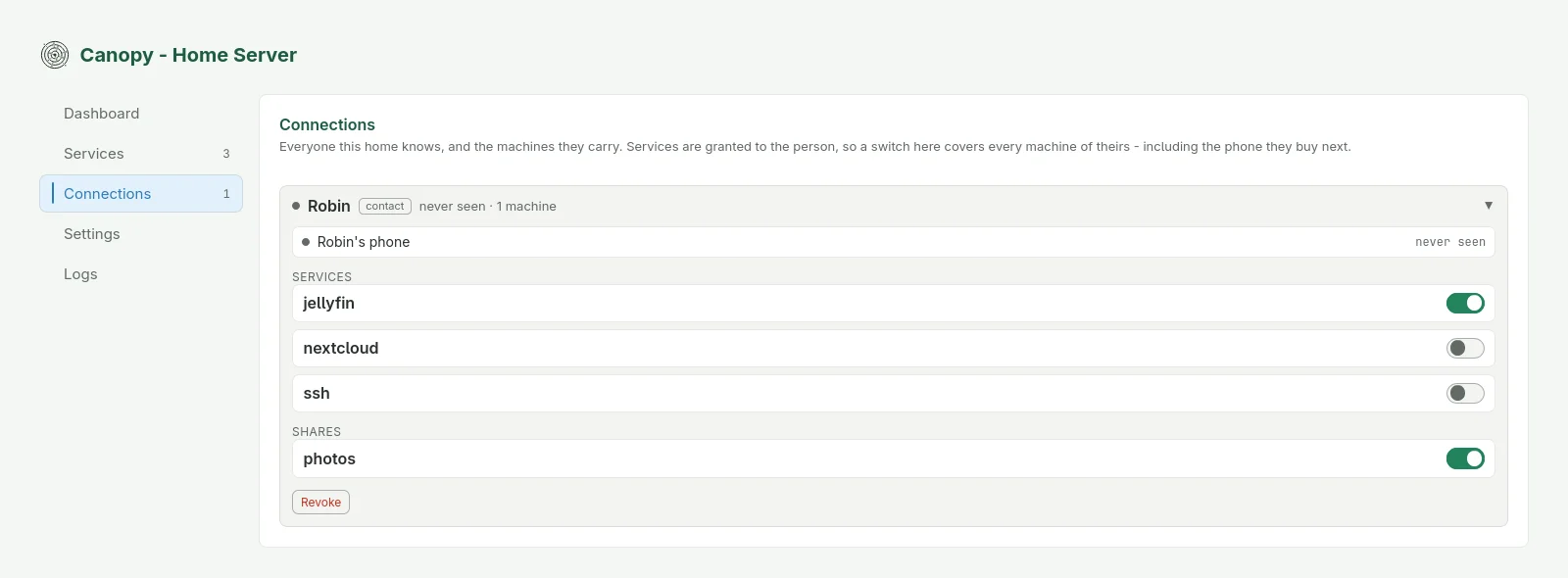
The Connections page with a guest named Robin expanded, showing switches for each service and shared folder
Connections page: one switch per service and shared folder, for each person.

From the command line

$ podman exec canopy canopy access grant Robin jellyfin

Back up the data volume

$ podman volume export canopy-data --output canopy-data.tar

The volume contains the server's identity and settings. If it is lost, every device must be paired again.